
This Article Applies From:
CVI Fusion25.6.4 | Infinity Client 25.6.4 | Infinity Module25.6.4 | Core Services25.6.4 |
Introduction
This document explains the supported formatted syntax (Markdown‑style) available in CVIFusion and its presentation in Infinity Client. The goal is to produce clear, consistent on‑screen messages.
1 - Pre- requisites
1.1 - Version Requirements
• CVIFusion: 25.6.4 or later
• Infinity Client: 25.6.4 or later
If either component is older, update both to ensure consistent rendering of formatted tags.
1.2 - Enable Formatted Syntax
To enable the markdown‑style tags for screen messages:
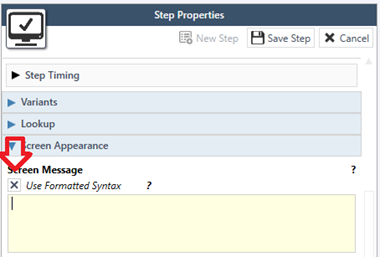
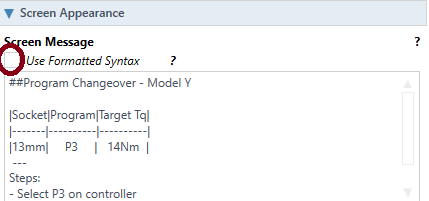
- Open the station configuration and go to Screen Appearance.
- Select "Use Formatted Syntax".
If messages display raw characters (e.g., **text**), confirm this setting is enabled and that the client version is supported.
2 - Feature Overview
The feature introduces Markdown-style formatted syntax for on-screen messages in CVI Fusion and Infinity Client. This allows operators and technicians to view messages with clear structure and emphasis, improving readability and reducing errors during production tasks.
What it does:
- Supports text formatting such as bold, italic, and underline for emphasis.
- Enables structured content with headings, lists, and tables for better organization.
- Allows insertion of hyperlinks for quick access to procedures or reference documents.
- Provides visual separators to distinguish sections like results and next steps.
Improvement Over Previous Versions:
Earlier versions displayed messages as plain text, which might led to:
- Poor readability on factory HMIs.
- Difficulty in highlighting critical warnings or statuses.
- Lack of structure for multi-step instructions.
With this new feature:
- Messages are clearer and more actionable, reducing operator mistakes.
- Critical information stands out (e.g., PASS/FAIL results, torque values).
- Procedures and troubleshooting steps are easier to follow, thanks to lists and headings.
- Links and tables streamline access to additional resources without cluttering the screen.
3 - Supported Formatting Tags - Quick Reference
Use the following tags to structure short, action‑oriented messages.
| Tag | Syntax |
| Italic | *text* |
| Bold | **text** |
| Underline | __text__ |
| List (dash) | - item |
| List (plus) | + item |
| Heading H1 | # Title |
| Heading H2 | ## Subtitle |
| Heading H3 | ### Section |
| Separator | --- |
| Hyperlink | [label](https://example) |
| Table | Use rows with pipes and dashes |
4 - Detailed Tag Usage
4.1 - Italic
Purpose: subtle emphasis for a word or short phrase. Avoid using italics for long sentences.
Example: *Work order loaded successfully.*

4.2 - Bold
Purpose: highlight critical labels, statuses, or warnings. Prefer bold over underline for readability on factory HMIs.
Example: **RESULT:** PASS | **Torque:** 12.0 Nm | **Angle:** 72°

4.3 - Underline
Purpose: rare emphasis.
Example: __Rework required before proceeding.__

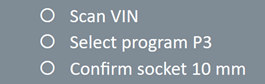
4.4 - Lists
Purpose: procedural steps and short checklists.
Example:
- Scan VIN
- Select program P3
- Confirm socket 10 mm
4.5 - Headings (H1–H3)
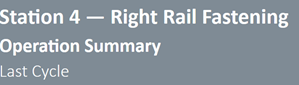
Use headings to organize multi‑block messages.
# Station 4 — Right Rail Fastening
## Operation Summary
### Last Cycle
4.6 - Separator
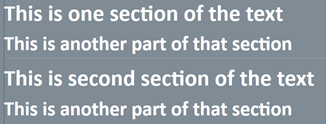
Insert a horizontal rule ( ---) to visually separate sections like summary vs. next action.
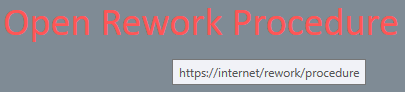
4.7 - Hyperlink
Use links for reference procedures, drawings etc. instead of long URLs. Ensure the target is reachable from the station network.
[Open Rework Procedure](https://internet/rework/procedure)
4.8 - Tables
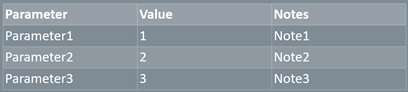
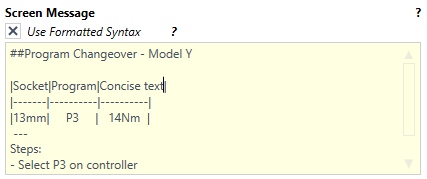
Use tables for parameters or results. Avoid wrapping cells for best readability. For larger datasets prefer attaching files or use dedicated views.
| Parameter | Value | Notes |
|--------------|--------|--------|
| Parameter1 | 1 | Note1 |
| Parameter2 | 2 | Note2 |
| Parameter3 | 3 | Note3 |
5. Example Scenarios
5.1 - Scenario 1 - Torque Confirmation (PASS)
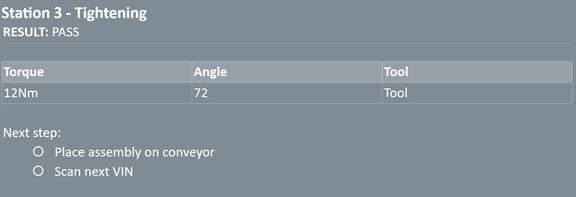
##Station 3 - Tightening
**RESULT:** PASS
---
|Torque|Angle|Tool|
|-------|-------|-----|
|12Nm| 72 | Tool|
---
Next step:
- Place assembly on conveyor
- Scan next VIN
5.2 - Scenario 2 - Over‑Torque Detected (FAIL)
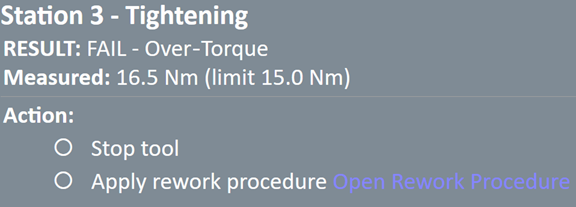
##Station 3 - Tightening
**RESULT:** FAIL - Over‑Torque
**Measured:** 16.5 Nm (limit 15.0 Nm)
---
**Action:**
- Stop tool
- Apply rework procedure
[Open Rework Procedure](https://internet/rework/procedure)
5.3 - Scenario 3 - Calibration Due
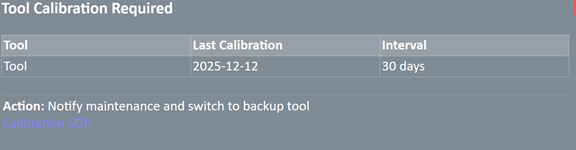
##Tool Calibration Required
|Tool|Last Calibration|Interval|
|-----|-----------------|---------|
|Tool| 2025-12-12 | 30 days|
---
**Action:** Notify maintenance and switch to backup tool
[Calibration SOP](https://internet/quality/calibration)
5.4 - Scenario 4 - Device Offline / Timeout
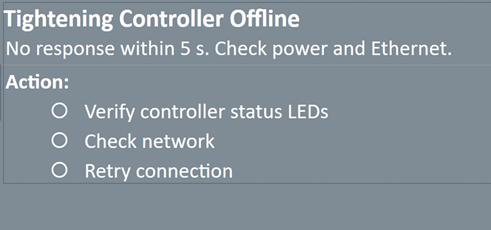
##Tightening Controller Offline
No response within 5 s. Check power and Ethernet.
---
**Action:**
- Verify controller status LEDs
- Check network
- Retry connection
5.5 - Scenario 5 - Changeover / Program Selection
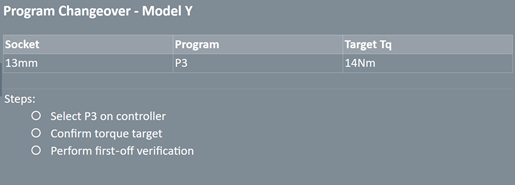
##Program Changeover - Model Y
|Socket|Program|Target Tq|
|-------|----------|----------|
|13mm| P3 | 14Nm |
---
Steps:
- Select P3 on controller
- Confirm torque target
- Perform first‑off verification
6 - Troubleshooting
6.1 - Raw tags visible
Example: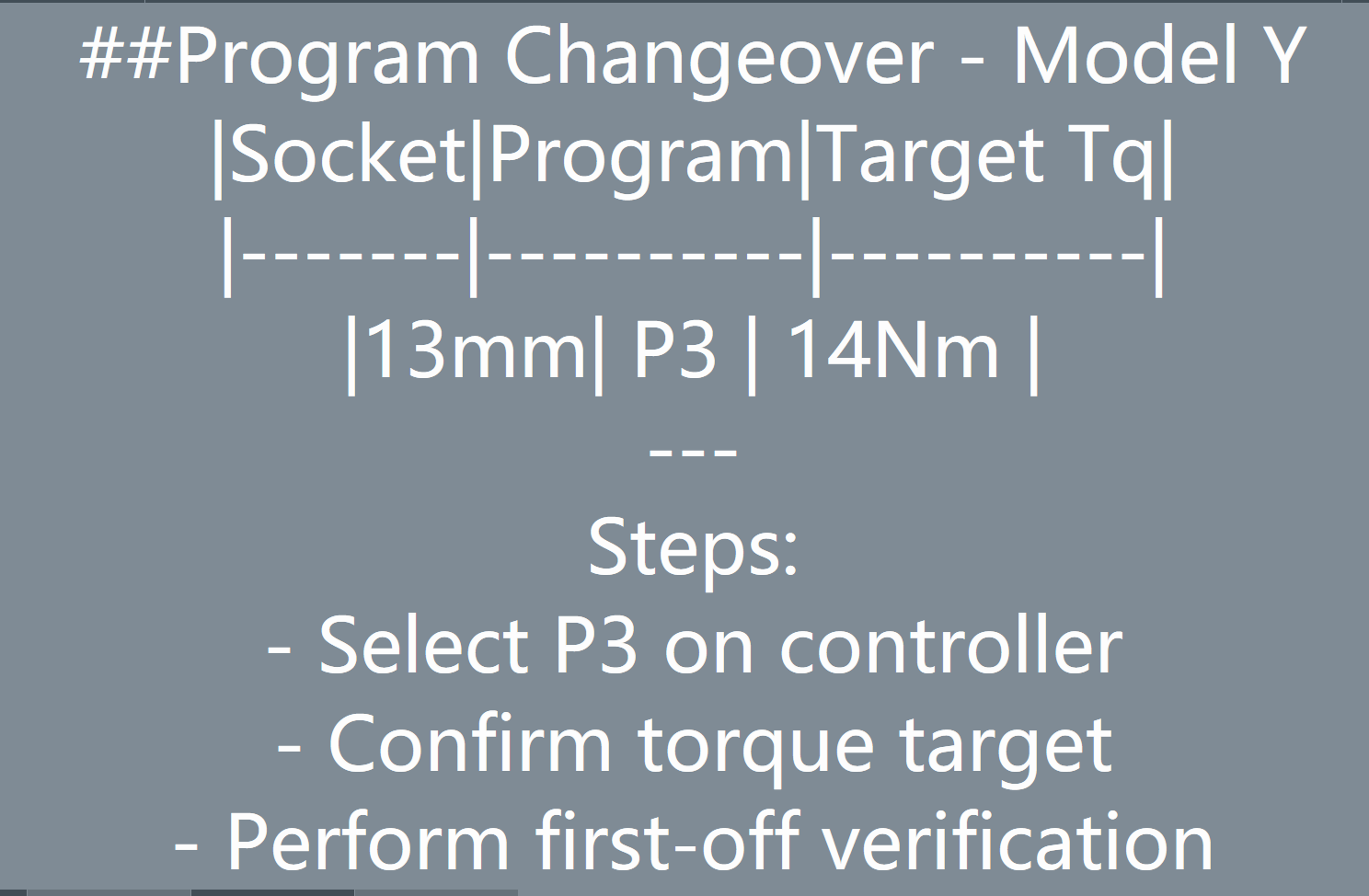
Fix: feature not enabled or version below minimum.
6.2 - Misaligned tables
Example:

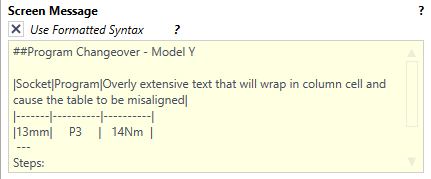
Fix: reduce columns, shorten headers.

6.3 - Special characters render incorrectly
Example:

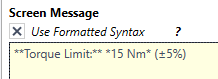
Fix: escape reserved characters with a backslash symbol (\).

