
This Article Applies From:
CVI Fusion 25.6.4 | Infinity Client 25.6.4 | Infinity Module 6.XX | Core Services 6.XX | DeMeter -- | CVI Net Web -- | Other Applicable Versions |
Note: Older versions of this article exists. Click 'Other Applicable Versions' to see all versions of this document.
Introduction
Contents |
1 - Pre-requisites
To follow this guide, you will need the following equipment and software:
- RP2040 macro keypad
- USB‑C data cable
- A computer with USB support and file‑manager access
- PivotWare
1.1 - Suggested readings before diving-in
- RP2040 / Pico boards overview (official docs) - Helpful for BOOTSEL behavior and board families, [raspberrypi.com]
- CircuitPython downloads [circuitpython.org]
- CircuitPython Quickstart, [learn.adafruit.com]
- “Welcome to CircuitPython” - the CIRCUITPY drive & auto‑reload. [learn.adafruit.com], [learn.adafruit.com]
2 - Device overview, setup and configuration
2.1 - Device overview
At the core of the macropad is the Raspberry Pi RP2040, a microcontroller featuring a dual‑core Arm Cortex‑M0+ processor running at up to 133 MHz, 264 KB of SRAM, and an integrated USB 1.1 controller. Most RP2040‑based boards include a UF2 bootloader mode called BOOTSEL, which appears as a mass‑storage device and allows drag‑and‑drop firmware updates. This mode is what you’ll use to install CircuitPython.
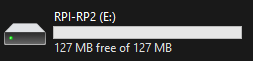
This guide focuses on a keypad variant equipped with 12 keys, RGB LEDs, and a rotary encoder with a push‑button. On certain custom boards, the encoder’s push‑button may also be wired to trigger BOOT/BOOTSEL during connection. If that’s not the case, check for a dedicated BOOTSEL button on the board. The universal method is to hold the BOOTSEL button while plugging in the device, which will mount a drive named RPI‑RP2.
2.2 - Assembly process
Your MacroPad kit includes:
- RP2040 MacroPad board
- 12 Kailh‑style mechanical switches
- 12 keycaps
- Rotary encoder with push‑button
- Encoder knob
To assemble the device, follow these steps:
- Insert each mechanical switch into the switch‑plate cutouts.
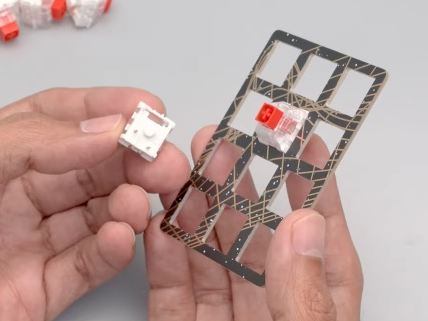
- Ensure all switches click into place and sit vertically.
- Verify that the switch pins insert cleanly through the PCB without bending.
- Insert the entire switch plate with all mechanical switches, making sure each pin is aligned correctly.
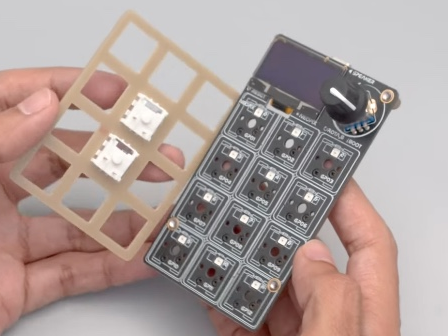
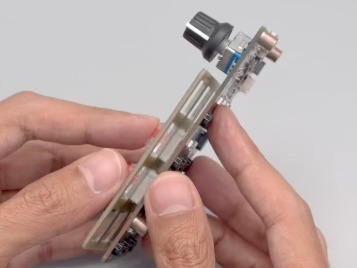
- Insert the encoder knob directly onto the encoder shaft.
- Align the backplate with the metal legs integrated into the motherboard.
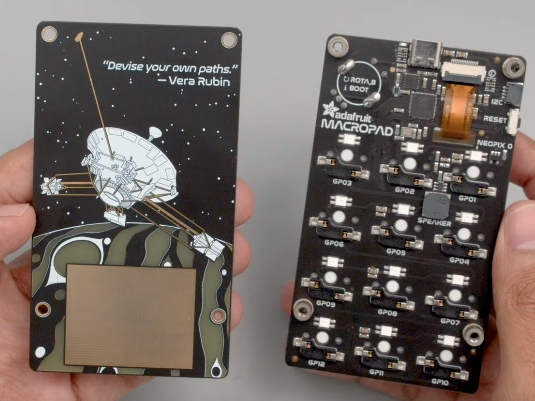
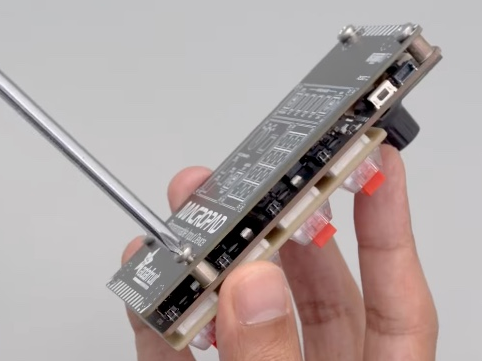
- Using the screws bundled with the device, fasten the backplate to the motherboard.
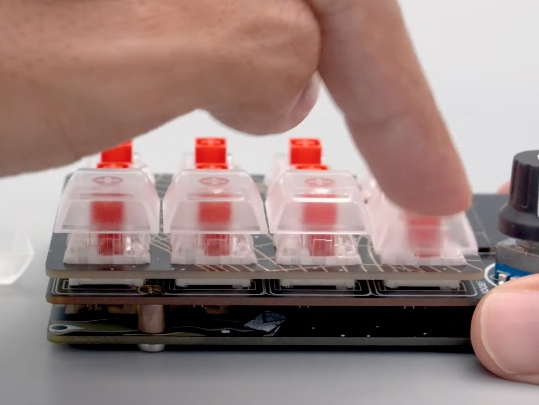
- Press the keycaps firmly onto each switch stem.
2.3 Initial device configuration
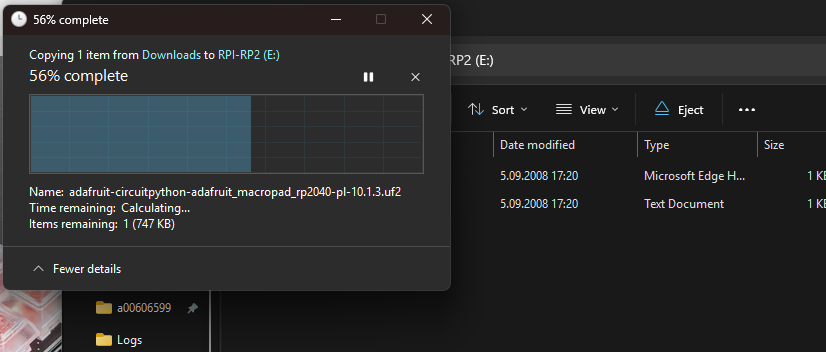
To configure the device for the first time, you’ll need to boot it into BOOTSEL mode and install a .UF2 image containing the desired version of CircuitPython.
Start by navigating to the official CircuitPython downloads website and selecting the Macropad RP2040 board. Once selected, choose the preferred CircuitPython language version you want to install.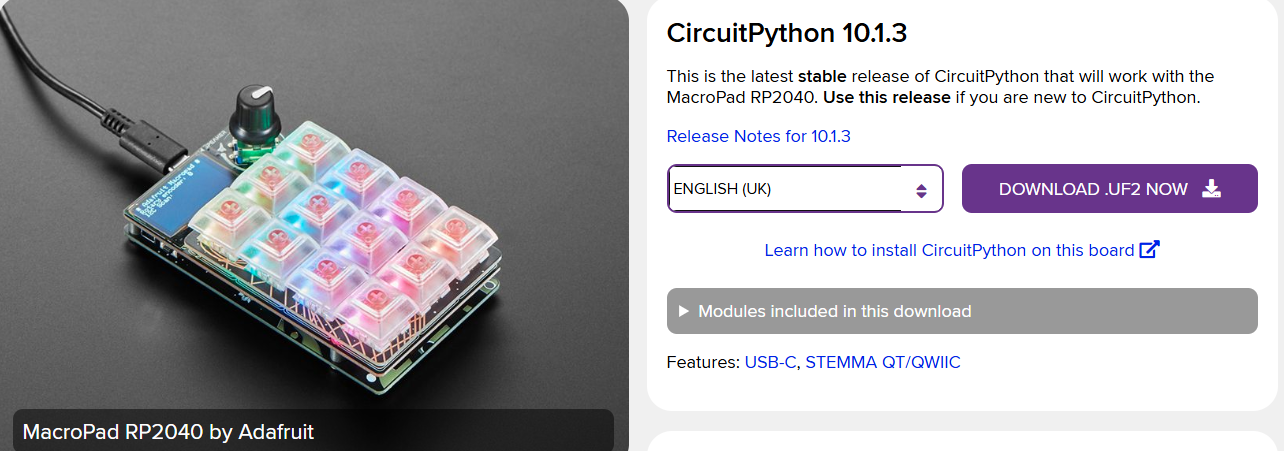
3 - Script overview, installation and integration with Pivotware
3.1 CircuitPython overview
CircuitPython is a beginner‑friendly programming language for microcontrollers, based on Python programming language. It turns supported boards into simple plug‑and‑play devices, when connected to a computer, they appear as a USB drive called CIRCUITPY where your code lives.
At startup, CircuitPython automatically:
- runs the file code.py
- watches the CIRCUITPY drive for file changes, and
- auto‑reloads whenever a file is saved to instantly apply the updates.
No special IDE is needed, any text editor is enough to write and run code on the device.
3.2 - Script installation
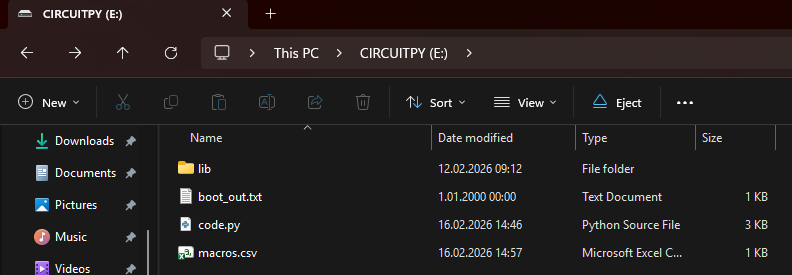
To install the script, first download the project files from the attachment section of this article. Once you have them, copy the following items directly to the CIRCUITPY drive:
code.py- the main scriptlib/- the libraries foldermacros.csv - file with macros assigned to a keys
3.3 - Script overview
The project uses the Adafruit MacroPad library together with the Adafruit HID Keyboard and KeyboardLayoutUS modules to transform each physical key into a fully programmable macro. The script also controls the per‑key RGB lighting to reflect various states such as OK, NOK, pressed, or idle.
At startup, the script defines constant values for the colors:
- BASE_COLOR - idle key color
- PRESS_COLOR - temporary color shown while a key is physically held
- OK_COLOR - persistent color for key 0 (OK)
- NOK_COLOR - persistent color for key 1 (NOK)
Then, it initializes the object
which gives access to functions:
- .keys - gives access to the hardware key matrix, allowing the script to detect when each physical key is pressed or released.
- .keyboard - provides functions to send USB keyboard actions (keystrokes and key combinations) to the connected computer.
- .pixels - controls the RGB LEDs under each key, allowing the script to set colors and visual feedback.
3.4 - Script setup
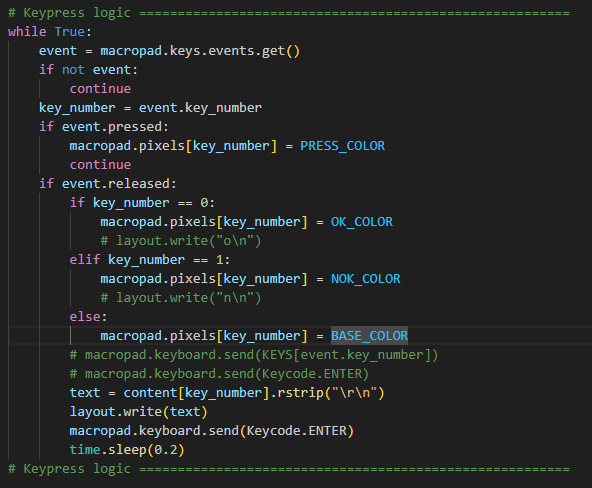
The script allows the user to choose between sending simple keystrokes or executing more complex macros stored in the macros.csv file, which must be placed in the root directory of the device. After every keystroke, an LF (line feed) character is sent to ensure proper integration with PivotWare. This behavior can be disabled by commenting out the line:
To achieve the desired functionality, the lines shown below must be commented or uncommented (using the # symbol) in the Keypress Logic section of the script.
- For simple keystrokes
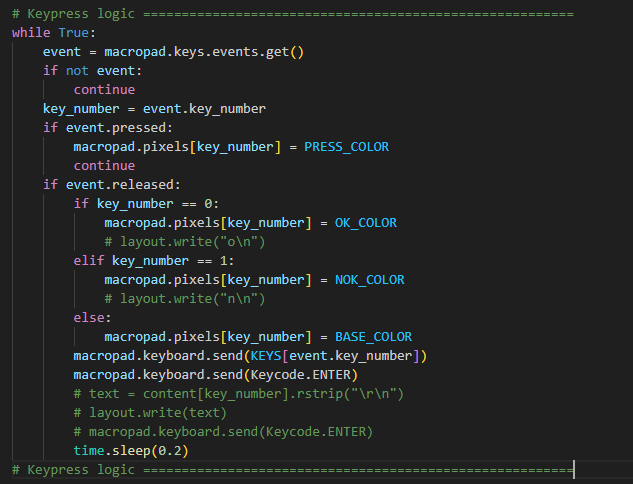
- For complex strings:
KEYS in the Keys List section of the code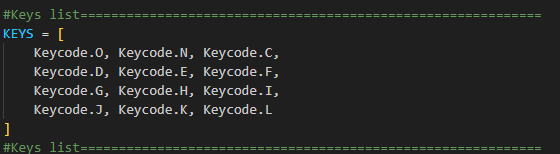
The list is built in the same order as the keys on the board (the 3x4 grid). You can assign any letter you want to be sent by any of the keys.
The complex string logic uses the content of the file macros.csv to send a string. Each column in the macros.csv file corresponds to a specific key on the macropad, so the position of a value within a row determines which key it is assigned to.
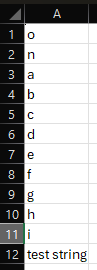

This functionality allows you to send any string you need, whether it's a simple O/N key or a more complex sequence of characters.
To make things easier, the attachment section of the article will include two versions of the code.py file: one intended for simple keystrokes and another for handling complex strings.
3.5 - Integration with Pivotware
Because the script always sends Enter after writing the CSV text, Pivotware can treat each key as a confirmation event, no matter whether the text is a single character ("o") or a full string ("OK").
This makes the keypad fully compatible with Step Action Confirmation, as long as the configured OK/NOK keys match the strings or key values you place inside macros.csv.
To make key presses act as OK/NOK confirmations in Pivotware:
- In your Process configuration, add or open the relevant Step and choose Step Action Confirmation.
- Under Action Confirmation Properties:
- For OK, tick Use Keyboard.
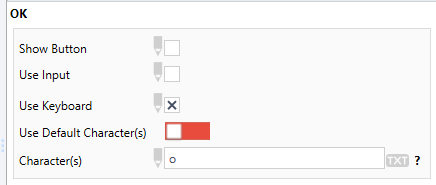
- For NOK, tick Use Keyboard as well.
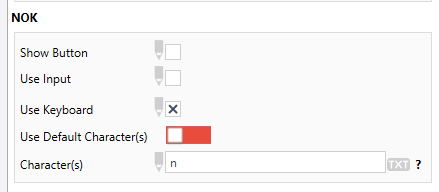
- For OK, tick Use Keyboard.
- Define the keyboard key for each (for example o = OK, n = NOK) so they match what your code.py sends. You can either:
- Untick “Use default character(s)” and assign explicit keys; or
- Go to Process Configuration → Display Options and set Default OK / Default NOK keys globally.
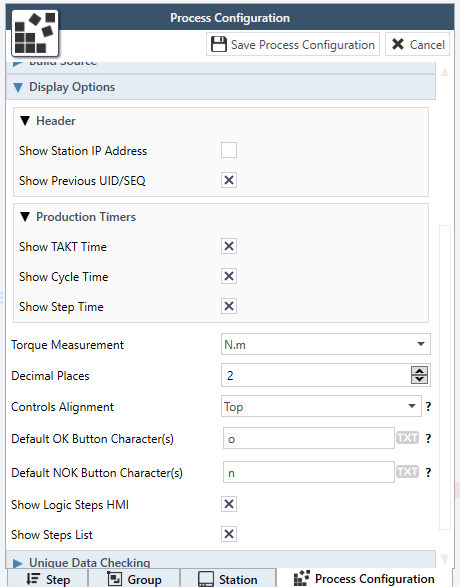
- If you chose string‑based mapping (STRING,OK / STRING,NOK in macros.csv), ensure Pivotware’s field receiving the input accepts those strings, and remember the code always appends Enter (line feed) so the action is committed automatically.