
This Article Applies From:
CONNECT-D2.7.5.5 | CVIConfig2.5.4.4 | cviMonitor1.9.7.2 | cvianalyzer1.5.6.2 |
Introduction
This article outlines the procedure for setting up a Barcode Reader for the CONNECT-D.
By the conclusion of the article, you will have a good understanding of the Barcode Reader prerequisites and the steps necessary to configure both the device and the CONNECT-D.
Contents1.1 - Suggested Readings before diving-in 1.2 - Barcode Readers requirements |
1 - Pre- requisites
1.1 - Suggested readings before diving-in
We recommend that you familiarize yourself with the following articles before proceeding further:
1.2 - Barcode Readers requirements
The Barcode Reader you intend to utilize must:
- Be a USB device.
- Support the Virtual COM Mode.
What is Virtual COM Mode ? Virtual COM mode allows a USB barcode scanner to simulate an old-style serial (COM-port) device, enabling computers and legacy software to interact with it as they would with a traditional serial scanner. It employs a specific driver to generate a “virtual” COM port over USB, facilitating the scanner's compatibility with systems that only recognize serial communication.
Is Virtual COM Mode available for all Barcode readers ? No - it is contingent upon both the Manufacturer and Model . To verify that your barcode reader meets the requirements, consult the manufacturer’s documentation.
How can I set up Virtual COM Mode once I confirm my device supports the feature ? The precise process depends on the manufacturer. Nevertheless, in most instances, this involves:
- A dedicated driver supplied by the manufacturer.
- A specific Barcode that must be scanned by your device to enable its configuration for Virtual COM Mode functionality.
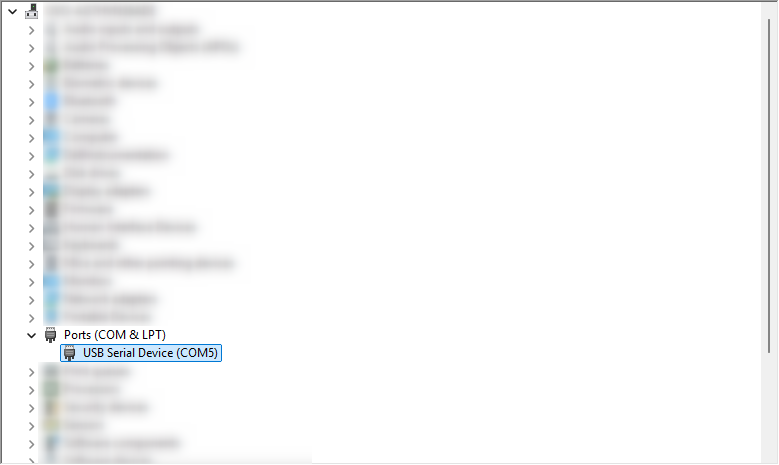
Make sure your device is correctly setup before moving to the next section.
2 - Configuring the CONNECT-D for the Barcode Reader
2.1 - Overview
A specialized service manages the Barcode Reader: the Desoutter Barcode Service.

The service is automatically set up with CONNECT-D version 2.7.5.5.
Why is the service configured for Manual Startup Type ?
The service is only activated when a Barcode Reader is set up. As a result, it is initiated solely upon request.
The service's purpose is to read the data captured by the Barcode Reader and transfer it to the CONNECT-D via Open Protocol: at least one of the CONNECT-D open ports is configured for Open Protocol communication (please see the Quick Setup Guide - Network configuration article).
The MIDs handled by the Desoutter Barcode Service are listed in the table below:
| MID Number | MID Description |
| 0001 | Client sent MID to establish with Open ProtocolServer |
| 0002 | Server sent MID to acknowledge connection request. |
| 0150 | Client sent MID to upload a VIN |
| 0004 | Negative acknowledge of a previous MID. |
| 0005 | Positive acknowledge of a previous MID. |
Restriction: it is only possible to associate the barcode reader to a single tool on the CONNECT-D.
2.2 - CONNECT-D configuration
This section assumes that the Barcode Reader is setup for Virtual COM Mode.
To setup a Barcode Reader with the CONNECT-D, first:
- Start CONNECT-D Configurator.
- Select the Barcode Service panel.
- Specify the CONNECT-D Port to be associated with the Barcode Reader then click Apply.
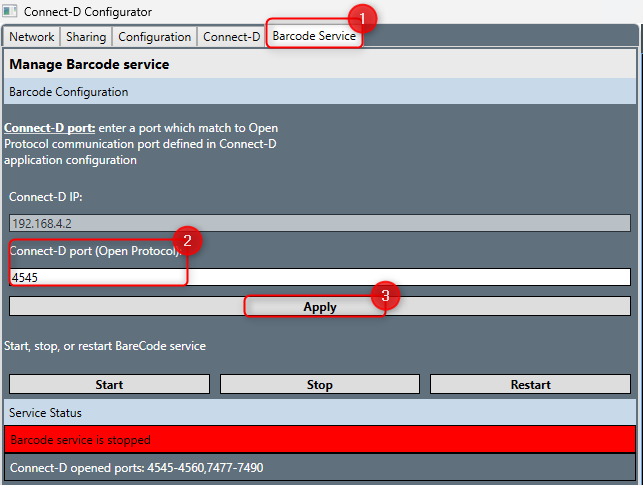 Make sure the specified port matches one of the port listed in the CONNECT-D Configurator configuration panel. It must also match the Open Protocol configuration for the tool you wish to associate the barcode reader to.
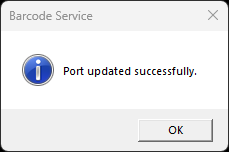
Reminder: the barcode reader can only be associated to a single tightening tool. - Click OK when the confirmation window opens.
- Click Yes when prompted to Restart the service.
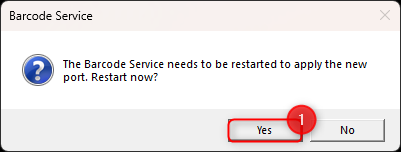
The Desoutter Barcode Service starts.
Once the Configurator settings are complete, open CVIConfig then check the following:
- At least one identifier has been configured for the CONNECT-D.
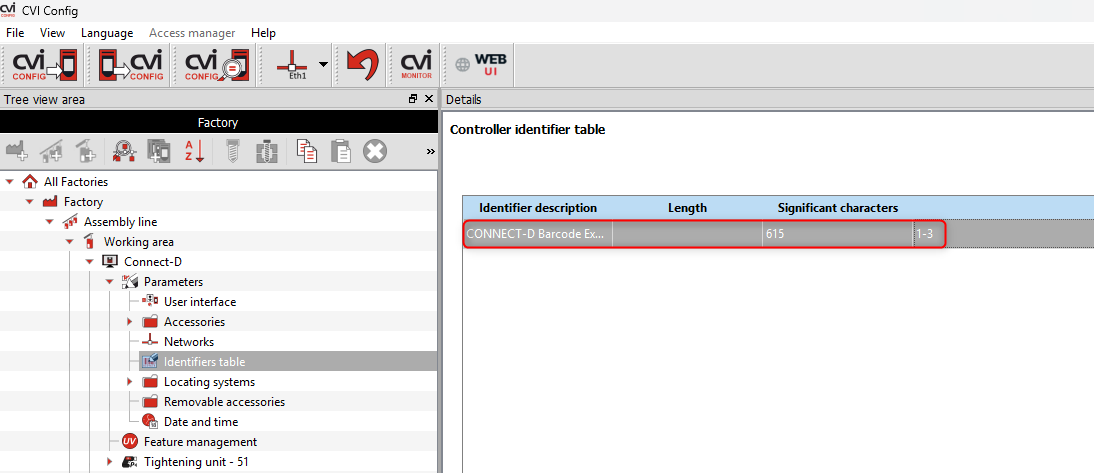
- The configured identifier has been associated to the Tightening Unit and the corresponding Source has been set to Open Protocol.
- PSet use case: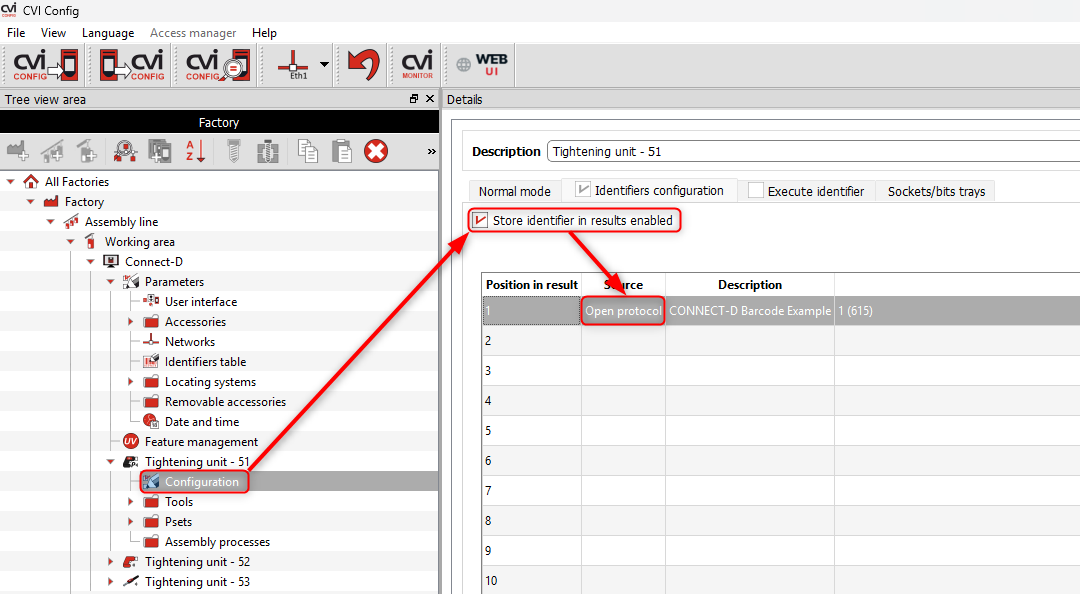
- Assembly Process use case: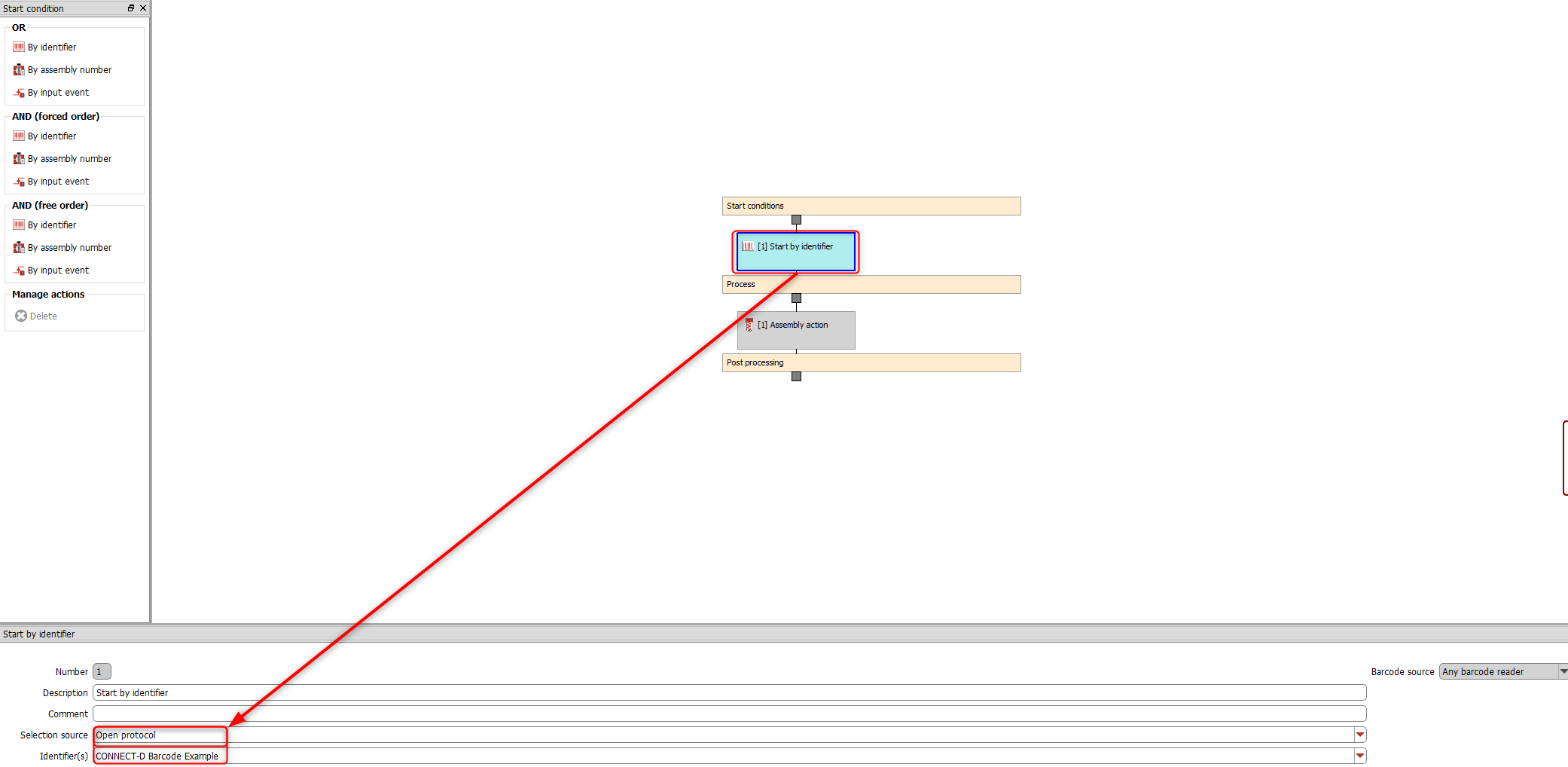
You can now use the Barcode Reader to scan the target identifier.
Restriction: Open Protocol setting is restricted to the Unique port pert tightening unit use case.