
This Article Applies From:
DeMeter26.1.1 |
Introduction
DeMeter provides a reliable and efficient export mechanism based on AMQP.
The Data Flow exporter enables DeMeter to transmit tightening results to a RabbitMQ message broker, thereby making them available to any client compatible with AMQP. This asynchronous communication system guarantees a dependable method for exporting results without requiring direct access to the DeMeter database.
This document details the procedures for installing and configuring the AMQP integration for DeMeter, including software prerequisites, RabbitMQ installation, broker setup, DeMeter configuration, and integration verification.
1 - Pre- requisites
1.1 - Generic requirements
Prior to setting up the AMQP integration, confirm that the following prerequisites are satisfied:
Software Requirements| Component | Recommended Version |
|---|---|
| DeMeter | 26.1.1 or newer |
| RabbitMQ | 4.2.5 |
| Erlang/OTP | 28.5 |
RabbitMQ depends on Erlang/OTP and cannot be installed or started without it. RabbitMQ 4.2.5 and Erlang/OTP 28.5 are the versions validated during DeMeter AMQP integration testing.
1.2 - Ports configuration
| Port | Purpose |
| 5672 | AMQP communication |
| 15672 | RabbitMQ Management Interface |
| 5671 | AMQPS communication |
| 15671 | RabbitMQ Management Interface over SSL/TLS |
If RabbitMQ is set up on a different server, these ports need to be open between DeMeter and the broker
2 - Communication overview
2.1 Overview
DeMeter supports exporting tightening results using the Advanced Message Queuing Protocol (AMQP). AMQP is an open messaging standard that enables reliable, asynchronous communication between applications using a message broker.
Rather than communicating directly with another application, DeMeter publishes messages to a RabbitMQ broker. The broker stores each message in a queue, where it can be consumed independently by external applications or custom integrations.
This architecture provides several benefits:
- Reliable message delivery
- Decoupled system integration
- Simplified communication between applications
2.2 Communication flow
The AMQP communication process follows these steps:
- A tightening operation is completed and result is sent to the DeMeter.
- DeMeter creates an AMQP message containing the tightening result.
- The message is published to the RabbitMQ broker.
- RabbitMQ receives the message and stores it in the queue defined within setings. (default: DeMeter.TighteningResults)
- External applications consume messages from the queue whenever they are ready.
3 - Software requirements
The following software versions are required for a supported installation.
3.1 DeMeter
AMQP functionality is available starting with DeMeter version 26.1.1.
Earlier versions do not support AMQP export.
3.2 RabbitMQ
The recommended RabbitMQ version is 4.2.5.
This version has been fully tested with DeMeter and is the only version officially validated by Desoutter.
Although newer RabbitMQ versions may also operate correctly, they may require some additional configuration steps. Only version 4.2.5 is officially recommended and guaranteed to work.
3.3 Erlang/OTP
RabbitMQ requires Erlang/OTP to be installed before the broker itself.
The supported and tested version is:
Erlang/OTP 28.5
Newer releases should work but might need some additional configuration.
4 - Installation process
4.1 Install Erlang
Download and install Erlang/OTP 28.5 or a newer version. https://www.erlang.org/
RabbitMQ depends on Erlang/OTP and cannot be installed or started without it.
4.2 Install RabbitMQ Server
Install RabbitMQ Server 4.2.5. https://www.rabbitmq.com/
During installation:
- the RabbitMQ Windows Service is created,
- the service is configured to start automatically,
- the default AMQP listener is enabled on TCP port 5672.
After installation, verify that the RabbitMQ service is running.
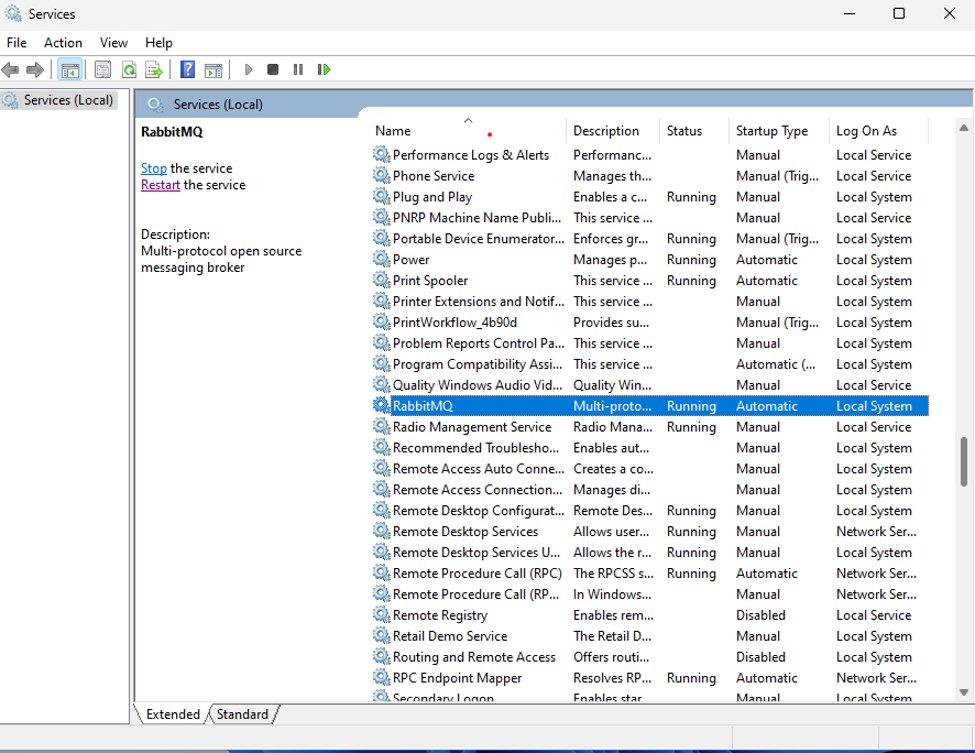
4.2.1 Enable RabbitMQ Management Interface
RabbitMQ provides a web-based management interface that can be used to monitor queues, connections, users, message rates, and broker health.
Before executing any RabbitMQ administration commands, open a Command Prompt as Administrator and navigate to the RabbitMQ sbin directory.
For a default RabbitMQ 4.2.5 installation, the location is:
C:\Program Files\RabbitMQ Server\rabbitmq_server-4.2.5\sbin
You can navigate to the directory using:
cd C:\Program Files\RabbitMQ Server\rabbitmq_server-4.2.5\sbin
Then to enable the Management Plugin, run the following command:
rabbitmq-plugins.bat enable rabbitmq_management
After the command completes successfully, RabbitMQ will enable the management plugin and restart the required components automatically.
4.2.2 Accessing the Management Interface
Once enabled, open a web browser and navigate to:
http://localhost:15672
If RabbitMQ is installed on a remote server, replace localhost with the server hostname or IP address:
http://<ServerName>:15672
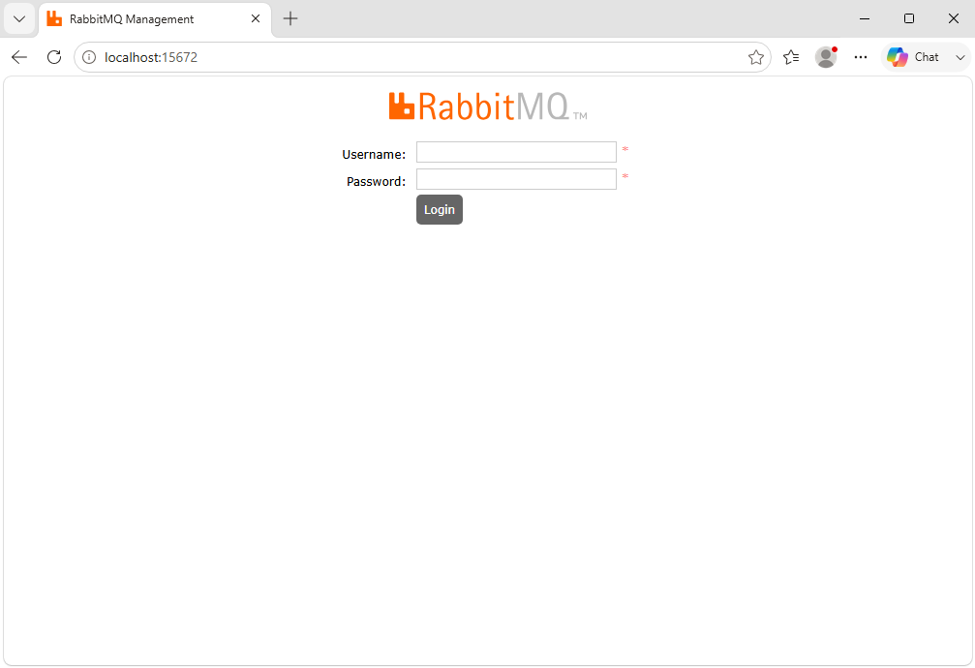
4.2.3 Default Credentials
For a fresh installation, RabbitMQ provides the following default credentials:
Username: guest
Password: guest
The default guest account should only be used during initial setup. For production environments, it is strongly recommended to create a dedicated administrative user and remove the default guest account once configuration has been completed.
After logging in, you should see the RabbitMQ Management Dashboard, which can be used to manage users, queues, exchanges, connections, and monitor AMQP traffic.
4.2.4 Configuring an Administrative User
The default guest account is intended primarily for initial setup and local access. For production environments, it is recommended to create a dedicated administrative user and remove the default guest account.
To do so, open Command Prompt as Administrator, navigate to RabbitMQ sbin directory and execute the following commands:
Create a new user:
Rabbitmqctl.bat add_user user password

Grant administrator privileges:
Rabbitmqctl.bat set_user_tags user administrator

Grant permissions for the default virtual host:
Rabbitmqctl.bat set_permissions -p / user “.*” “.*” “.*”
If administrative account has been succesfully created, we can proceed with removing the default guest account:
Rabbitmqctl.bat delete_user guest
5 - Configuring DeMeter
Before DeMeter can publish messages to RabbitMQ, the DataFlow exporter must be enabled within the application configuration.
5.1 Copy the configuration files
For new installations, the default configuration file is located at:
C:\Program Files\Desoutter\DeMeter\appsettings.json
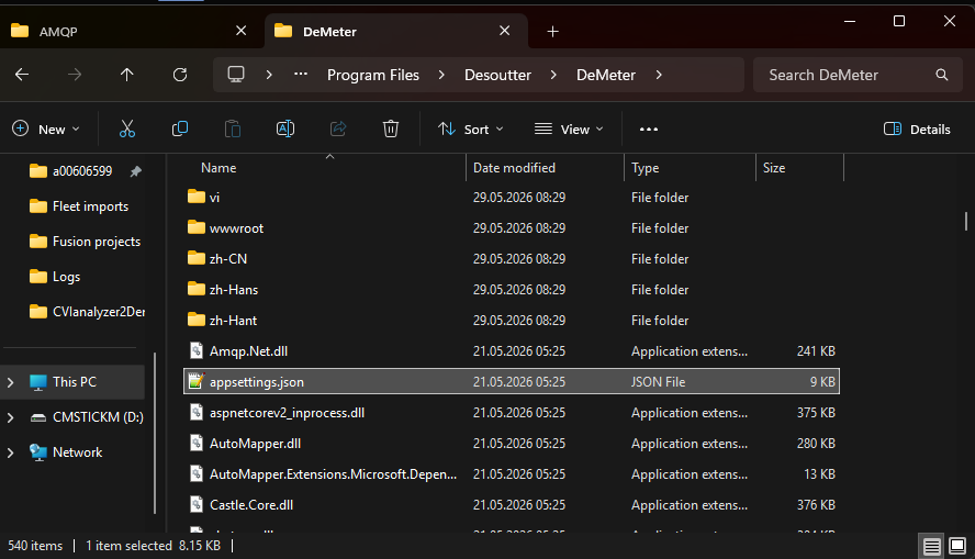
Copy this file to:
C:\ProgramData\Desoutter\DeMeter\API\
The copy stored in ProgramData is the file that should be modified.
5.2 Enable DataFlowExporter
Open appsettings.json in your prefered a text editor:
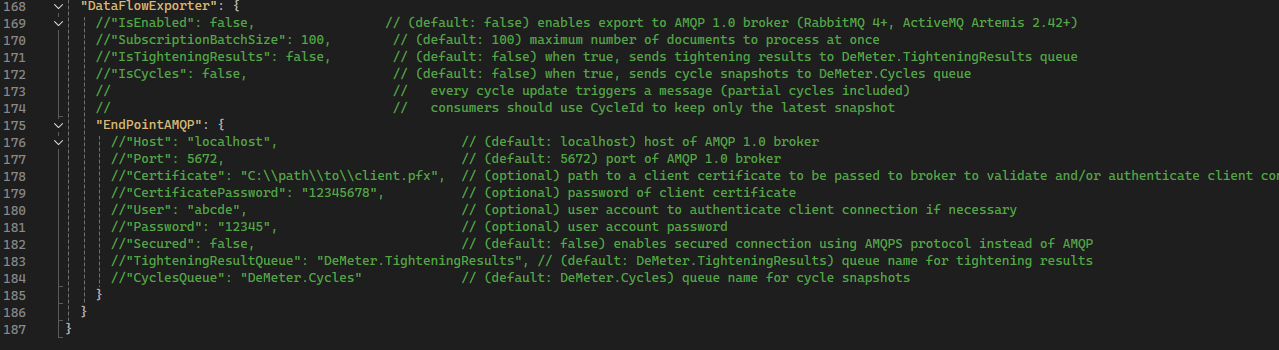
Locate the DataFlowExporter section – it should appear at the bottom of the file.
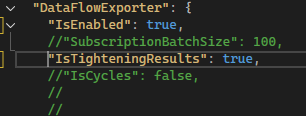
By default, the exporter is turned off since the IsEnabled property is commented out.
For example:
"DataFlowExporter": {
// "IsEnabled": false,
Remove the leading // and modify the value to:
"DataFlowExporter": {
"IsEnabled": true,
Furthermore, repeat the process for this section:
// "IsTighteningResults": false
so it should be updated to look like this:
"IsTighteningResults": true
If desired, you can also set up Cycle Snapshots to be transmitted to the AMQP broker. To do this, follow the previous steps for the next section:
// "IsCycles": false
so it should appear as follows:
"IsCycles": true
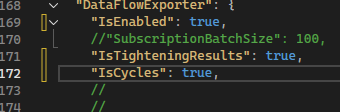
After enabling this options, DeMeter initializes the DataFlow exporter during startup.
5.3 Configure AMQP Endpoint
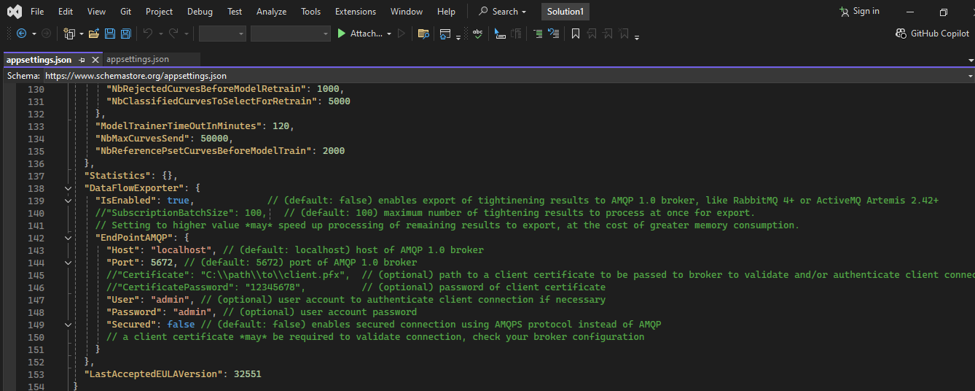
Inside the DataFlowExporter section, locate the nested EndPointAMQP object.
The object itself is present by default, while its configuration parameters are commented out.
To establish a connection with RabbitMQ, uncomment and configure at least the following properties:
| Parameter | Description |
| Host | RabbitMQ server hostname or IP address |
| Port | RabbitMQ AMQP port (typically 5672) |
| User | RabbitMQ username |
| Password | RabbitMQ user password |
By default, RabbitMQ requires a username and password to connect to the broker. However, if needed, it can be configured to accept connections without authentication.
Remove the leading // from each property and specify values appropriate for your environment.
5.4 Configure a secure connection (optional)
If TLS encryption is required, uncomment the following properties:
| Parameter | Description |
| Certificate | Path to the client certificate (.pfx) |
| CertificatePassword | Password protecting the certificate |
Example:
"Certificate": "C:\\Certificates\\client.pfx",
"CertificatePassword": "********"
When enabled, DeMeter establishes a secure connection using the specified client certificate.
6 - Exporting data
The AMQP exporter allows DeMeter to publish production data to a RabbitMQ broker, making it available to any AMQP-compatible consumer application. Once a connection to the broker has been established, DeMeter automatically creates the required queues if they do not already exist. No manual queue creation is required on the RabbitMQ server.
At the time of writing, DeMeter can publish the following data types:
- Tightening Results
- Cycles
6.1 Queue names
Every operation that is completed produces an AMQP message which is dispatched to the respective RabbitMQ queue.
By default, DeMeter sends messages to the queue DeMeter.TighteningResults for Tightening Results and DeMeter.Cycles for Cycles.
If these queues are absent when DeMeter connects to RabbitMQ, DeMeter will automatically create them.
6.2 Customizing queue names
It is possible to modify the standard queue names as specified in the DeMeter configuration.
Locate the EndPointAMQP section within the DataFlowExporter configuration and locate the following commented-out parameters:
// "TighteningResultQueue": "DeMeter.TighteningResults",
// "CyclesQueue": "DeMeter.Cycles"
To implement custom queue names:
- Eliminate the leading // from the parameters you wish to modify.
- Substitute the default values with the queue names that your environment necessitates.
7 - Troubleshooting
7.1 Unable to perform an operation on node
If you encounter an error similiar to the one below when running RabbitMQ administration commands:
C:\Program Files\RabbitMQ Server\rabbitmq_server-4.2.5\sbin>rabbitmqctl.bat add_user admin admin
Error: unable to perform an operation on node 'rabbit@<hostname>'
Please see diagnostics information and suggestions below.
The problem frequently arises from a discrepancy between the Erlang cookie employed by the RabbitMQ service and the Erlang cookie utilized by the currently logged-in Windows user.
Resolution
- Disable RabbitMQ if it is currently running.
- Locate the Erlang cookie utilized by the RabbitMQ Windows service:
C:\Windows\System32\config\systemprofile\.erlang.cookie
Copy the .erlang.cookie file into your user profile directory:
C:\Users\<Username>\
- If a .erlang.cookie file already be present in the user profile directory, substitute it with the file obtained from systemprofile.
- Verify that the file permissions permit access solely to the current user.
- Launch a new Command Prompt as Administrator and attempt the RabbitMQ command again.
7.2 Unable to access the Management Interface
Verify that:
- the rabbitmq_management plugin is enabled,
- RabbitMQ is running,
- TCP port 15672 is accessible.
7.3 No messages appearing in RabbitMQ
If no messages show up in RabbitMQ following a tightening operation or the completion of a cycle, please check the following:
- Ensure that RabbitMQ is operational and that the RabbitMQ service has started successfully.
- Confirm that the DataFlow exporter is activated in the DeMeter configuration:
- Verify that the AMQP connection parameters are set up correctly:
Host Port User Password TCP port 5672 must be accessible from DeMeter server Make sure that the data types you want to export are explicitly enabled (IsTighteningResults, IsCycles)