
This Article Applies From:
CVI Fusion 25.4.4 | Infinity Client 25.4.4 | Infinity Module25.4.4 | Core Services 25.4.4 | CONNECT-D2.7.5.5 |

Introduction
This article describes the steps to install Pivotware and CONNECT-D on a single computer.
By the conclusion of the articles, you will have an understanding of the installation prerequisites and the details of the integration.
1 - Pre- requisites
1.1 - Suggested readings before diving-in
We advise you to get familiar with the following articles first:
1.2 - Minimum Software versions
Pivotware and CONNECT-D minimum versions are:
- Pivotware: 25.4.4.
- CONNECT-D: 2.7.5.2.
1.3 - U-RIM and Licensing
CONNECT-D and Infinity Client need an U-RIM (part number: 6159279480) to operate together.
It is important to note that the cost of CONNECT-D activation is included with Infinity Client.
2 - Setting- up CONNECT-D And Infinity Client
2.1 - Overview
The installation procedure for CONNECT-D and Pivotware adheres to the same protocols as their separate configurations.
However, the setup varies slightly:
- CodeMeter needs to be set up to handle multiple accesses to the U-RIM.
- There is no activation fee via CVIConfig for CONNECT-D - it is crucial to confirm that CONNECT-D has recognized the Infinity Client prior to implementing any new configuration.
Moreover, there are three different installation and setup scenarios to consider:
- CONNECT-D and Infinity Client are installed at the same time.
- Infinity Client is installed initially and used for a while before CONNECT-D is introduced later.
- CONNECT-D is installed first, followed by the addition of Infinity Client .
While the installation method for each software remains the same, the configuration needs to be modified to fit the various scenarios.
2.2 - Installation steps
2.2.1 - CONNECT-D and Pivotware first time install
For fresh installation of CONNECT-D and Infinity Client, or installation of Infinity Client after the CONNECT-D was already installed, follow the steps outlined below:
- Connect the U-RIM to your computer.
- Install the CONNECT-D - refer to the Connect-D installation procedure.
Complete the CONNECT-D System Configuration as outlined in the article. - Open your preferred web browser and navigate to WebAdmin | Dashboard (localhost:22352/dashboard.html).
Click on Configuration , Server then Server Access.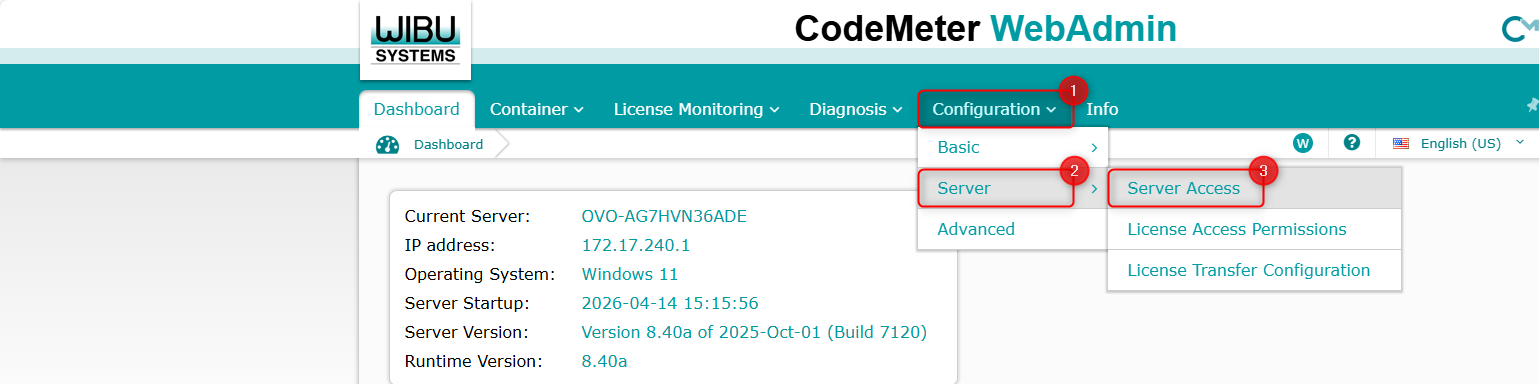 Ensure Network Server is enabled - Check that the Network Port is allowed on the computer.
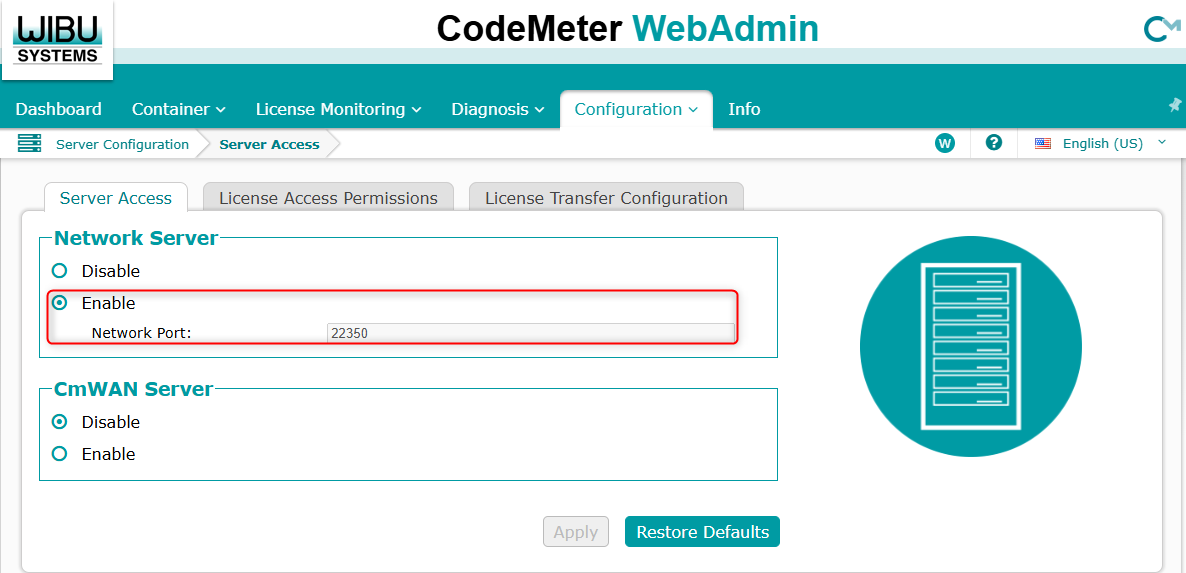 If the settings are incorrect, modify them and then click Apply. Wait for the parameters to be successfully deployed.
 - Install Infinity Client - refer to the Infinity Client installation procedure for guidance.
2.2.2 - CONNECT-D installation with Infinity Client pre- installed
To ensure a smooth installation:
- Ensure Infinity Client is up-to-date, i.e. installed release is at least 25.4.4.
- Open your preferred web browser and navigate to WebAdmin | Dashboard (localhost:22352/dashboard.html).
Click on Configuration , Server then Server Access. Enable Network Server - Check that the Network Port is allowed on the computer.Click Apply. - Install the CONNECT-D - refer to the Connect-D installation procedure.
Complete the CONNECT-D System Configuration as outlined in the article.
Once both systems are installed, jump to section 2.3 - Specific configuration steps.
2.3 - Specific configuration steps
- Launch CVIConfig and use the Configuration Assistant as outlined in the CONNECT-D Quick Setup guide to establish your CONNECT-D. Transfer the configuration to the CONNECT-D.
- Before proceeding to the next configuration step, click the Transfer Connect to PC button followed by Start Transfer.
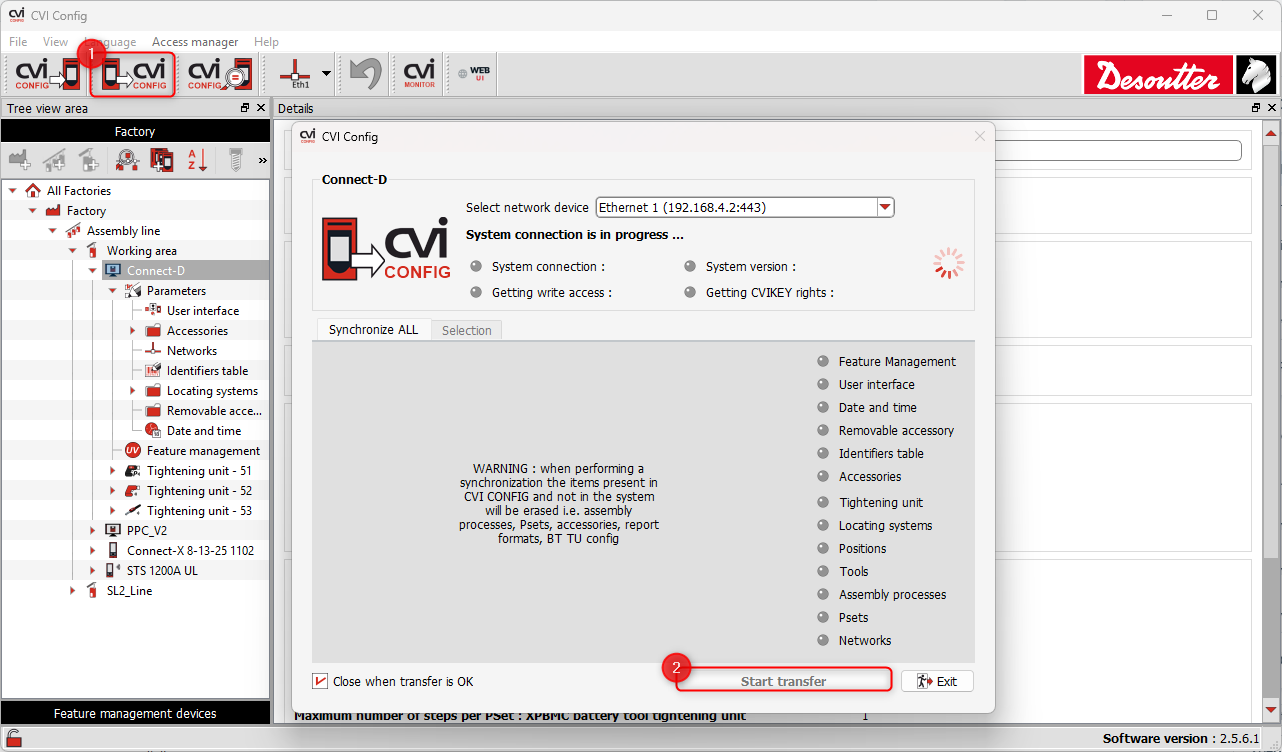
- Once the transfer is complete, open the Feature Management : the status associated to the CONNECT-D feature must be Included.
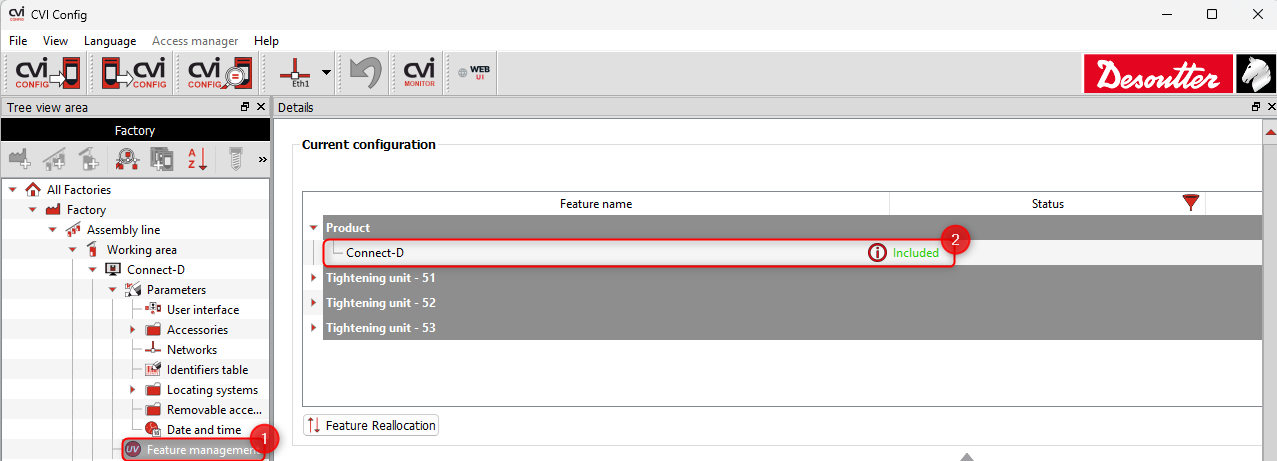
CONNECT-D and Infinity Client can now be configured as usual.
3 - Further readings
In order to further explore both system capabilities, we advise you to read through the following articles:
- Desoutter Industrial Tools : CONNECT-D Quick Setup Guide - discover how to finalise your the CONNECT-D setup.
- Desoutter Industrial Tools : Creating, Saving and Opening Projects - take your first steps in the Pivotware configuration.